
Adding a location via the map
New locations can be added from any map view by left clicking on the map and then selecting “Add location”
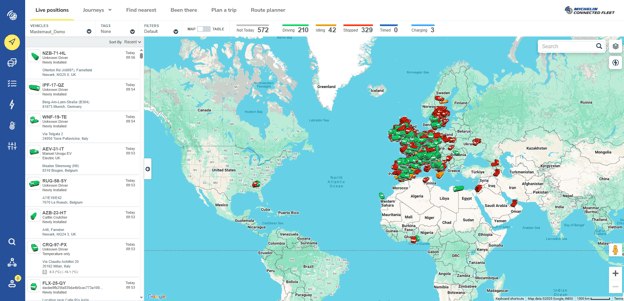
When on a map view within MyConnectedFleet such as the live location page. Left click on the place within the map where you want to add a new location.
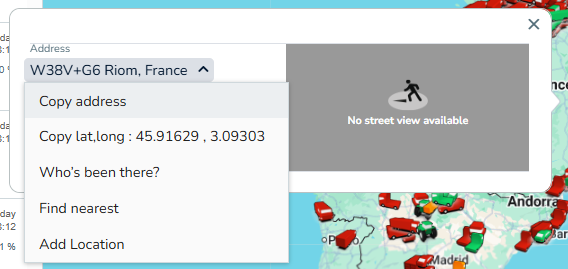
Then click on the little arrow following the adress.
This will bring up an menu where you can then select “Add location”
When adding a location only the name and group are required fields
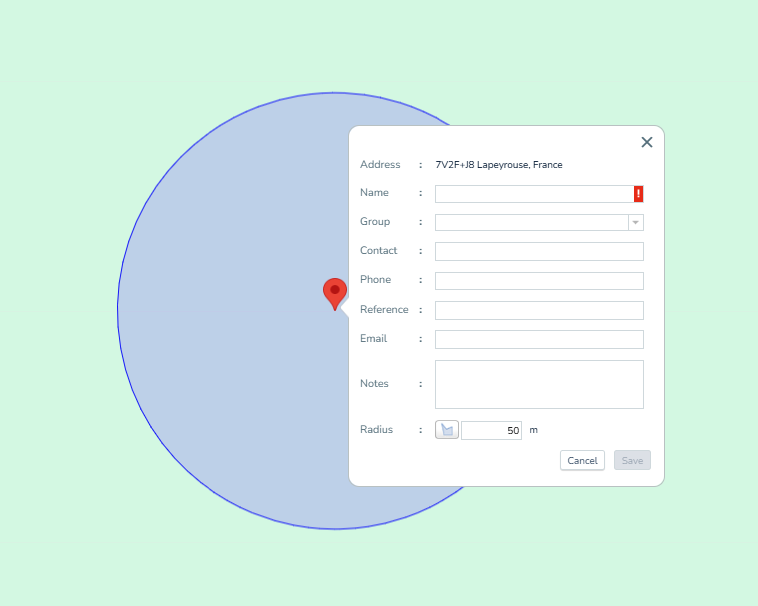
After clicking add location a pop up box will appear with the following fields:
- Address - this is populated automatically
- Name - this is what the location will appear as in MyConnectedFleet
- Group - this is a pull down choice (additional groups can be added from the Group menu)
- Contact - is an optional field
- Phone - is an optional field
- Reference - is an optional field
- Email - is an optional field
- Notes - is an optional field
- Radius - this is the area around the location - this is 50m by default.
Once all relevant fields are filled out click the save button and the location will be added to MyConnectedFleet.