EBS Weight Alert & Live Position
Viewing live position and EBS weight during a journey
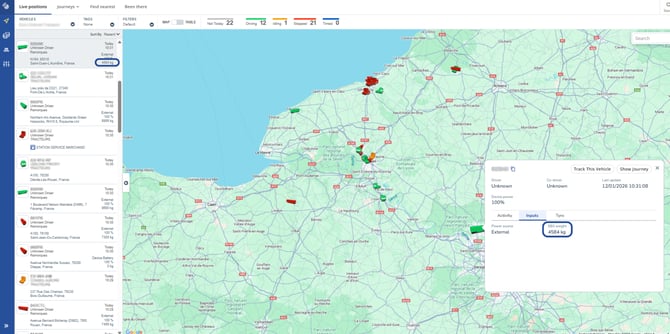
From the “Live Positions” section, you can view the real-time weight of your connected trailers:
-
in the left-hand panel, under your vehicles,
-
or by clicking on a vehicle and opening the “Inputs” sub-tab.
Overview of EBS weight alerts
To create an EBS weight alerts, simply go to “Settings, Alerts & Locations”, then “Alerts”, “Creation”, and click on “EBS Weight Alert”.

Vehicle settings (height, length, width, unladen weight, and maximum gross weight) must be taken into account when interpreting the weight-related data provided by the platform.*
Accessing historical EBS weight data - Ability to identify where the load of the trailer changed
Throughout the trailer journeys, you can track how the trailer weight evolves over time. To do so, there are two options:
-
Via the vehicle: From the “Live Map & Journeys” page (arrow icon in the blue sidebar), select the vehicle of your choice from the left-hand menu or by clicking directly on the map in the center of the screen. Once the vehicle panel is open, click on “Show Journey”.

-
Via the driver: From the “Live Map & Journeys” page, go to “Journeys” → “Drivers”, then access the route and its history using the white “Map” button.

The example below shows how the load evolves during the trailer journey.

Trailer Rollover Alerts
How to set up the alert
To create a rollover alert, simply go to “Settings, Alerts & Locations”, then “Alerts”, “Creation”, and click on “Trailer rollover alert (VDC)”.
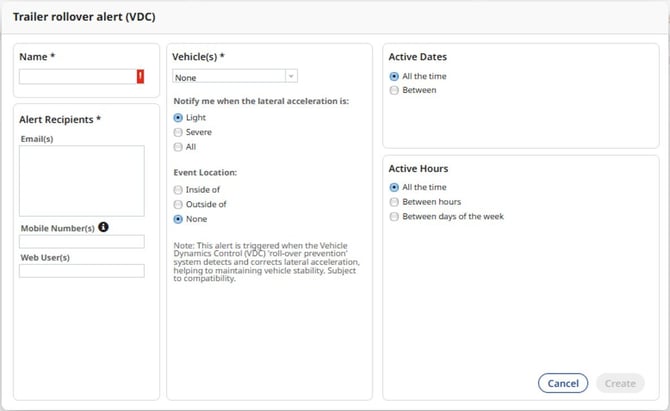
There are Three level of alerts depending on the value of the lateral acceleration returned by the trailers EBS:
- All: Between -5 and +5, different than 0 m/s²
- Severe Between -5 and -3, +3 and +5 m/s²
- Light : Between -3 and +3, different than 0 m/s²
The alert is reset on the next event received where the LAT ACC is zero and it is present for 5 sec so, the alert can be triggered many times in the same journey.
What does an alert message look like?

EBS Equipment Disconnected alert
As with other alerts, to create an EBS Equipment Disconnected alert, simply go to “Settings, Alerts & Locations”, then “Alerts”, “Creation”, and click on “EBS Weight Alert”.


How to view alert history
If you want to view the alert history, you can access it from the same menu category as before by selecting “History” from the “Alerts” menu.

Here, you can adjust the different options:
-
Time Period
-
Alert Name
-
Alert Type
-
Resources
-
Email
-
Web User
The example below shows an alert triggered by a trailer equipment disconnection:

Trailer Safety & Usage Reports
How to view reports
To access reports related to your trailers, navigate to “Drivers, Vehicles & Reports” from the blue sidebar on the right side of your screen (vehicle icon).
Then go to “Reports” → “Library”.
Once you have found the report (e.g.: Trailer Safety Report) you want to view, click the “Select…” button on the right side of the screen, then select “View Report”.

If you have many different reports, you can filter them using the “Category” and “Report Type” buttons.
- Safety Report Example
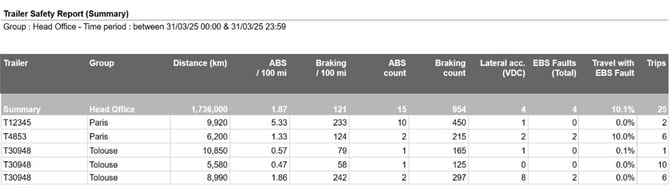
- Usage Report Example
 Vehicle settings must be taken into account to ensure accurate calculations in the report above.*
How to export reports
If needed, you can export the report by clicking on the document and arrow icon, then choose the format that best suits your needs from the three available options:
-
PDF
-
CSV
-
XLSX

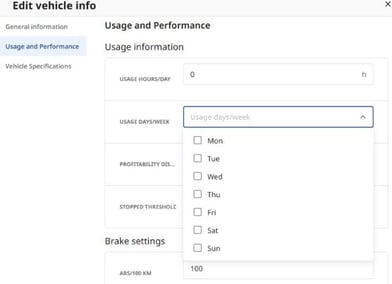
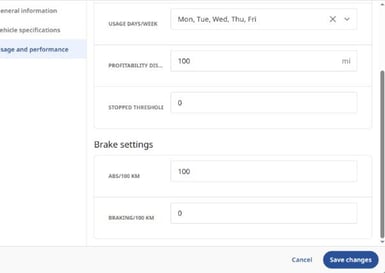
*Reminder – How to access and edit your vehicle information ?
If you want to modify or update your vehicle information (especially due to the impact this may have on trailer reports and alerts), you can go to “Settings, Alerts & Locations” → “Organisation” → “Vehicles”.
Once a vehicle is selected, you can click on the three dots under “Actions” and select “Edit Vehicle Info”.

This allows you to update the general information, and more importantly for this use case, the “Usage and Performance” and “Vehicle Specifications” sections.