
EBPMS Requirements
What EBS systems is MICHELIN Connected Fleet compatible with?
|
Manufacturer |
Model |
Compatible? |
|
Haldex |
Gen 1 |
❌ |
|
Haldex |
Gen 2 |
✅ |
|
Haldex |
Gen 3 |
✅ |
|
Wabco |
D |
❌ |
|
Wabco |
D-Premium |
✅ |
|
Wabco |
E |
✅ |
|
Wabco |
E-Premium |
✅ |
|
Knorr-Bremse |
EBS TEBS4 |
❌ |
|
Knorr-Bremse |
GEN2.0 |
❌ |
|
Knorr-Bremse |
GEN2.1 |
❌ |
|
Knorr-Bremse |
GEN2.2 (Pre 2017) |
❌ |
|
Knorr-Bremse |
GEN2.2 (Post 2017) |
✅ |
How do I find the EBS Make and Model?
If you are unsure of the make or model of a trailer’s EBS system, you can find this information in the following ways:
-
Brand-new trailers: Check the manufacturer’s build information. The EBS details should be provided there.
-
Older or second-hand trailers: If you cannot locate the EBS plate on the chassis itself (for example, if it has been branded or painted over), contact the manufacturer directly and provide the chassis number to obtain the EBS information.
Guidelines for computing EBPMS data
To generate the first EBPMS report in MyConnectedFleet, the equipment must send:
- 200 valid braking events
- 100 positions with a valid payload, meaning 100 positions containing data that is compatible with the configurations listed below (next screenshots).
Once the first report has been generated, the data is updated in real time as new valid payloads are received. The reports can therefore also be viewed in real time.
How to setup your trailers for EBPMS data ?
Following a successful installation, EBPMS data can be set up either for individual trailers or for multiple trailers at once.
Note: After this update, the initial rule needs to collect data from at least 100 valid payloads at this weight before the data can be generated.
Option 1 – Set up EBPMS data for an individual trailer
Go to Organisation → Vehicles and locate the trailer you want to update
%20-%20Image%201.png?width=670&height=288&name=Smart%20Load%20Management%20(EBPMS)%20-%20Image%201.png)
Click the three dots under “Actions” next to the relevant asset, then select “Edit Vehicle Info”.
%20-%20Image%202.png?width=670&height=284&name=Smart%20Load%20Management%20(EBPMS)%20-%20Image%202.png)
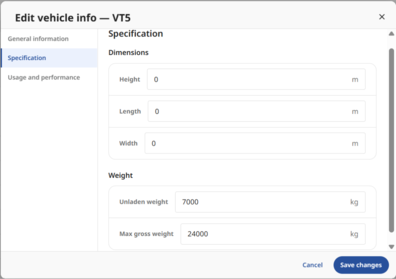
A pop-up window will open, where you can enter or update the vehicle specifications, including dimensions and weight, as well as usage and performance information.
Option 2 – Bulk edit for multiple vehicles
Select all the vehicles you want to update using the checkboxes, then select “Bulk Actions” → “Edit Specification”.
%20-%20Image%204.png?width=670&height=286&name=Smart%20Load%20Management%20(EBPMS)%20-%20Image%204.png)
EBPMS reports
To access the reports, go to “Reports” → “Library”, then select “Break Performance Report EBPMS”.
Note: If you do not remember how to subscribe to the reports, please refer to the following guide: How to subscribe to a report
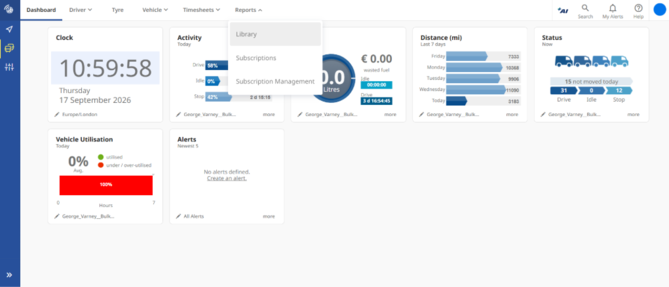
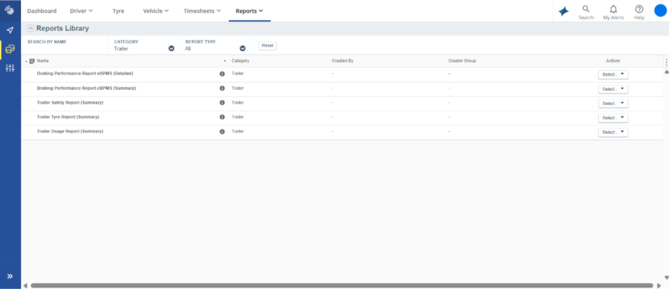
Here, you can find 2 categories of reports :
- Summary reports – Provide a high-level overview of EBPMS data and key performance indicators.
%20-%20Image%207.png?width=670&height=289&name=Smart%20Load%20Management%20(EBPMS)%20-%20Image%207.png)
- Detailed reports – Provide more in-depth information and detailed EBPMS data for further analysis.
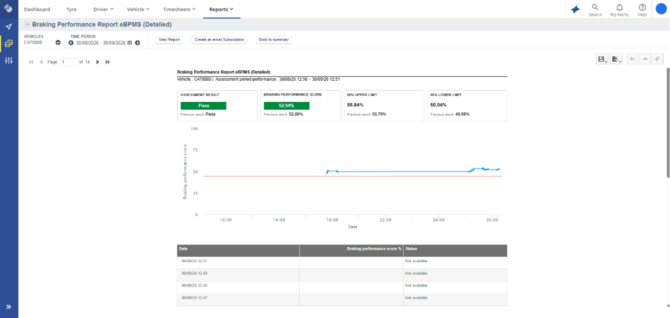
%20-%20Image%209.png?width=670&height=316&name=Smart%20Load%20Management%20(EBPMS)%20-%20Image%209.png)
FAQ & recommandation
- Why can’t I see any eBPMS data for my trailers?
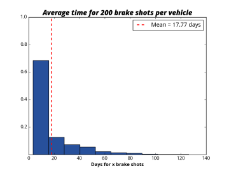
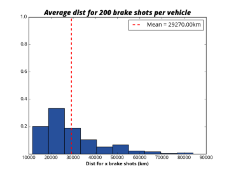
It can take some time to gather enough valid brake events for an eBPMS score to be first determined. The graphs below show the average length of time and distance for a trailer’s data to become visible on the MyConnectedFleet platform.
- Why is my eBPMS score different to my roller-brake tests done in a garage?
As eBPMS data is taken from real-world braking events it will look different to controlled roller-brake tests. In addition the DVSA requires stricter guidelines on the pass/fail mark for eBPMS systems compared to roller tests.
Tri-Axle trailers are currently exempt from the DVSA requirement to have laden roller-tests; meaning that this will result in differences between the two scores. In a controlled test done in identical conditions, our eBPMS reporting is 99% accurate to roller tests.
- How do I configure the trailer settings?
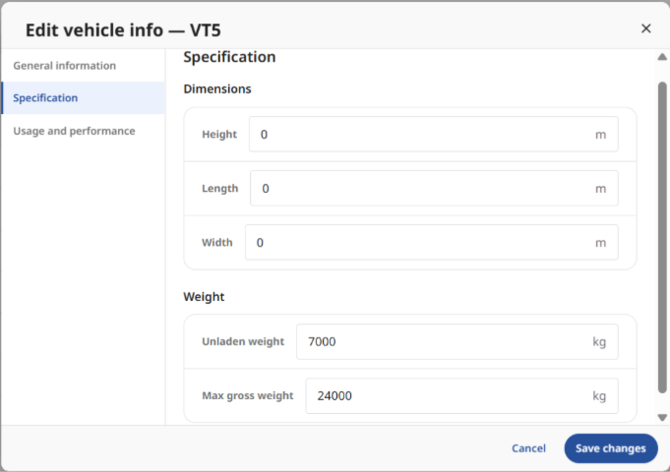
To adjust the trailer configurations go to the HGV live positions page and press the 3 lines to the right of the Michelin Logo. On the right hand side select the cog icon (configurations) Within the configurations page, select vehicles. Filter by non automotive within the type drop down. Press the Pencil Icon (edit) under the vehicle you wish to change,
-
Recommandet setting:
Min Weight: 7T
Max Weight: The maximum load the trailer can legally carry (usually 24T).
Important: It is your responsibility to keep these values accurate to ensure that eBPMS data is correctly captured.
-
Why has my vehicle failed EBPMS
Considering that your vehicle specification has been setup correctly in MyConnectedFleet platform
Your trailer’s braking system continuously monitors how well the brakes perform during everyday driving. It looks at normal braking events, compares how hard the brakes were applied with how quickly the vehicle slowed down, and uses this to estimate the trailer’s overall braking efficiency. A “failed” result means that, based on recent journeys, this estimated efficiency has fallen below the 45% threshold level
This result could be an early warning indicator, not a confirmed fault. It tells us the brakes should be checked, but it doesn’t on its own identify the cause.
-
What typically causes a failed result
1. Brake wear or faults: worn linings, poor adjustment, sticking components or air leaks.
2. Limited data: too few qualifying braking events, or mostly light loads or gentle braking.
3. Operating conditions: frequent hill braking or poor tractor–trailer brake balance.
4. System set-up: Incorrect vehicle specification in MyConnectedFleet platform