
What is the purpose of the Driver page?
The "Driver" page in Connect allows you to create and configure drivers for your fleet.
Where can I find the Driver page?

- First click in the main menu (on the left-hand side of the page) on “Settings Alerts & Locations” button
- Second click in the secondary menu (top of the page) on the category “Drivers” button
The "Drivers" page allows you to setup the drivers for your fleet.
Create a new Driver
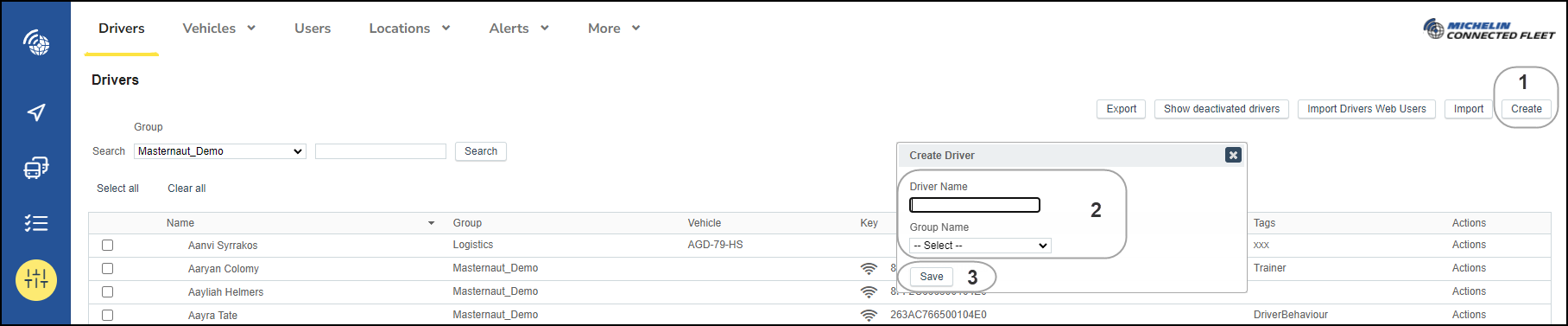
- To create a new driver, select "Create‟ from the top right of your screen. This will open the Create Driver box.
- Enter the drivers name and assign them to the relevant group
- Then click "Save".
Your newly created driver will then be saved to the Driver List.
Update or delete existing Driver
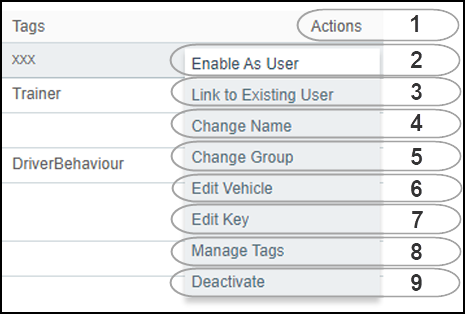
- To edit or assign a Vehicle or ID key to a Driver, click the "Actions‟ button on the line the Driver name appears on.
Then select the required option :
- Enable as User
- Link to Existing User
- Change Name: Use to correct a Driver's name – Do not use for renaming to a new Driver
- Change Group: Assign a Driver to a different group
- Edit Vehicle: Permanently assign a Vehicle to a Driver if Driver ID is not used
- Edit Key assign the Drivers Key Fob number if Driver ID is used
- Manage tags: To add tags to drivers
- Deactivate: Deactivating a Driver moves them to the "Show Deactivated Drivers‟ section at the top of your screen. Any associated Vehicles or ID Keys will then become available to be reassigned