
HOME PAGE - FLEET DASHBOARD
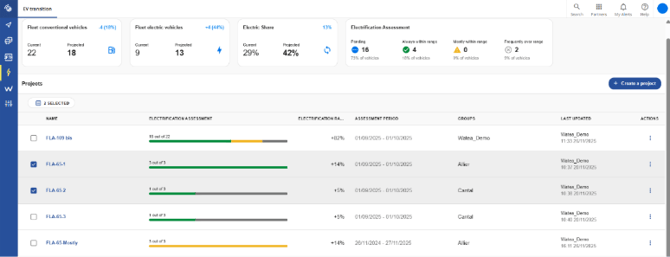
The home page provides an overview of the current and projected status of your fleet. 
Dashboard and Key Performance Indicators (KPIs)
- Electrification rate: Percentage of electric vehicles in the fleet.
- Internal combustion (conventional) vehicles vs electric vehicles: Exact count of units.
- Projection score: Vehicles projected as ‘Electric’ are the sum of those classified as Always within range and Mostly within range.
- Fleet assessment status – considers the selected projects and applies the selected filters:
- Always within range (Green): 100% of actual journeys are shorter than the range of the replacement EV.
- Mostly within range (Yellow): Some journeys exceed the range but remain within the tolerance limits (distance and frequency) defined by the user.
- Often outside the range limit (Grey): At least one journey exceeds the defined tolerance limits, or too many journeys fall within the tolerance margin.
- Pending (Blue): Vehicles not yet included in a simulation project.
Global Filters
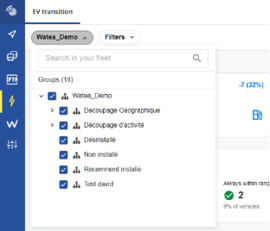
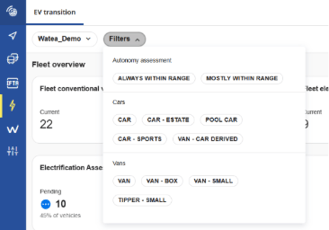
The filters at the top of the page only affect the Dashboard (KPIs) and not the list of projects:
- Groups: Filter by organisational hierarchy.
- Electrical compatibility simulation: Allows you to adjust the severity (e.g. show only those marked ‘Always within range’).
- Vehicle types: Filter by category (Cars, Vans, etc.).
Project Management
Below the Dashboard, you can access the list of projects you have created.
You can Create, Edit or Delete projects. There are two ways to create a project:
- Automatic Generation: Instantly creates projects covering the entire hierarchy of the fleet to which you have access (in groups of up to 20) with default scenarios (standard range, 80% home charging/20% on-site charging for cars).
- Advanced Creation: Step-by-step manual configuration (see section 4).
ELECTRIFICATION PROJECTS CREATION
There are two options for creating electrification projects:
1. Advanced Project Creation - 4 Steps
To create an electrification project manually, click on the ‘Create an advanced project’ button.
You can then define the project parameters by following these four steps:
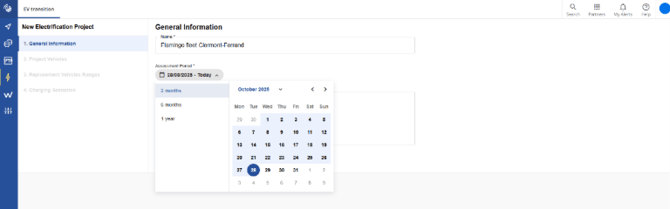
Step 1: General Information
- Project name (Required).
- It is advisable to enter a project name that reflects the scope of the project, e.g. selected groups, relevant sites, vehicle type (passenger cars vs light commercial vehicles), etc.
- Evaluation period: Preselection: 2 months (default), 6 months or 1 year. Option to select a period manually.
- Description (Optional): Free-form details for internal tracking.
Step 2: Vehicle Selection
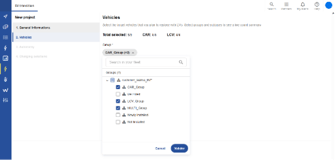
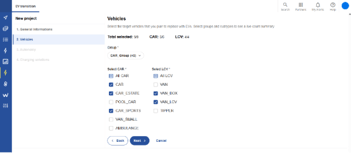
Filter and select by Groups, Types or Subtypes.
- NB: Vehicles that are already electric are automatically excluded from the selection.
- NB: Vehicles with no journey data are also excluded.
- NB: Only vehicle types covered by the tool are available (e.g. Car, Estate Car, Service Car, Coupé, Light Commercial Vehicle – Van, Heavy Commercial Vehicle, Light Commercial Vehicle – Pick-up, Light Commercial Vehicle – Box Van, Dump Truck)
Step 3: Range capacity scenario (Transition)
Define the capabilities of future replacement vehicles:
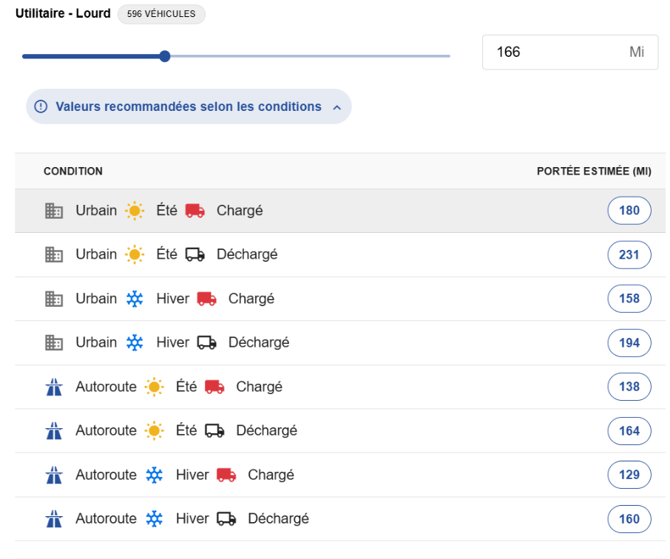
- Range slider: Adjustable between 200 km and 600 km per vehicle sub-type. These are pre-filled with a default value chosen by Michelin based on
- Recommended values by vehicle type according to conditions:
- A pre-filled default range recommendation: based on actual ranges observed on electric vehicle models in the fleet equipped with MCF telematics. By default, this value is: T= 15°C, motorway/urban mix = 50%/50% and vehicle loaded to 50% of its gross vehicle weight.
- Range recommendations based on conditions (season, road type, vehicle load): based on actual ranges observed on electric vehicle models in the fleet equipped with MCF telematics.
- Range tolerance:
- Distance threshold: % of range allowed to be exceeded.
- Frequency threshold: % of driving days permitted beyond the limit.
- Condition: Both parameters must be met for a vehicle to be classified as ‘Mostly within the range limit’.
Step 4: Charging scenario
Define future charging habits so that the tool can estimate the future consumption profile:
- On-site charging solution: If you enable an on-site charging solution, define the mix between Home and Site.
- Urban / Motorway breakdown: Define the mix between Fast charging (= Motorway) / Slow charging (Urban).
The tool uses these ratios, combined with market standards, to estimate daily consumption.
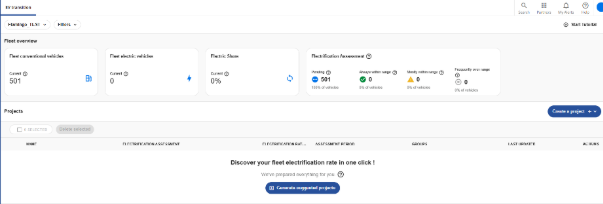
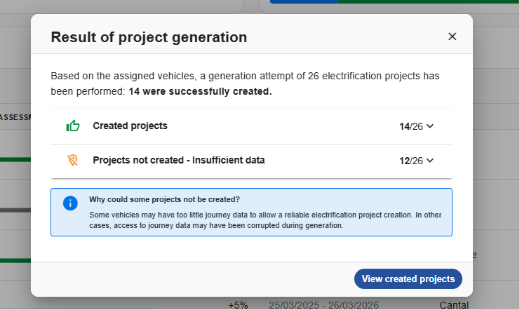
2. Automatic Generation (Full Fleet)
Ideal for a quick initial analysis.
To launch the Automatic Fleet Project Generation, click on the ‘Generate suggested projects’ button.
The tool divides the fleet into groups and sub-groups (max. 20 groups / 40 projects), then by type (passenger cars vs. light commercial vehicles), and applies default electrification scenario parameters:
- Range Scenario:
- Range Limit: Based on the Michelin reference database by vehicle sub-type.
- Range Tolerance:
- For passenger cars:
- Margin: 80%
- Frequency: 60% (= 3 days out of 5)
- For light commercial vehicles (LCVs):
- Margin: 80%
- Frequency: 20% (= 1 day in 5)
- For passenger cars:
- Charging Scenario:
- For passenger cars:
- Home: 100%
- Fast (= motorway): 90%
- Slow (= town): 10%
- For light commercial vehicles (LCVs):
- Site: 100%
- Fast (= motorway): 90%
- Slow (= town): 10%
- For passenger cars:
NB :
1) Automatically generated projects are marked with the following icon: 
2) Whereas manually created projects are marked with the following icon: 
PROJECT PAGE: PROJECT DETAILS
Clicking on a project takes you to the detailed analysis:
Project Dashboard:
The same KPIs as on the Dashboard page, but limited to the scope of the project.
Vehicle List :
Details by number plate, including their electric vehicle compatibility status and a few KPIs:
Each vehicle can be edited individually within a project to adjust its specific settings (range or charging) without affecting the rest of the project.
A ‘Reset to general’ button allows you to revert to the project’s default settings.
Daily Analyss ("Daily Graph") :
When you click on a vehicle’s registration number, a graph displays the distance travelled each day in relation to the range of the replacement EV and the defined tolerance:
- Usage graph: View each day of the assessment period.
- Colour legend: Immediately identify the days on which the range was exceeded.
- Summary KPIs: Number of ‘In-range’ days, associated consumption and estimated public charging time.
"Low Data" Status
A specific icon indicates vehicles for which the data is ‘recent’ (less than one month old). The analysis has been carried out, but the statistical reliability is lower.
Export
Option to export simulations for external analysis.
PROJET EDITION
Editing a complete Project
You can edit a Project using the ‘Edit’ button on the Project Details page or the ‘Edit’ button in the list on the Dashboard page.
Only the following settings can be changed:
- Project name
- Project description
- Range scenario settings
- Charging scenario settings
The following settings cannot be modified:
- Evaluation period for combustion engine vehicle usage data
- Selection of vehicle groups
- Selection of vehicle types
If changes are made, they will be applied to all vehicles in the project
Customisation of a vehicle transition scenario
You can edit the electrification scenario for a specific vehicle by clicking the ‘Edit’ button in the vehicle list on the Project Details page.
Only the following parameters can be modified:
The changes will only apply to the specifically selected vehicle.
Date of the last modification
The date of the last modification to a project corresponds to its creation date or the date of the last edit, where applicable.
NB: The dates for the evaluation period of combustion engine vehicle usage data remain those defined at the time of creation.
NB: If an Automatically Generated Project has been edited, it becomes a Manually Generated Project. See logo.
NB: The user listed for the Project is the one who created the Project or the last person to edit it, where applicable.
DATA EXPORT
The tool allows users to export a project’s simulation results in Excel format.
This enables users to process the data outside the platform, for example to support decisions on fleet renewal.
The tool will soon allow users to export a project’s simulation results in CSV format.
PROJECT VISIBILITY RULES
Manual Projects: Visible to all users with access to the same hierarchical level or higher.
Automatic Projects: Restricted to users with access to the same hierarchical level (to prevent the Dashboard from becoming overloaded by third parties).
Illustration:
- If I am a global fleet manager with access to the entire hierarchy, and one of my local operators—who only has access to part of the sub-group (lower node)—generates projects automatically, I will not see them appear and will not have access to them
- However, if the operator makes a change, the project becomes “Manual” . I will therefore be able to see it and access it.