
How to request for help (Service Desk) ?
Once you are logged into the platform, click on the “Service Desk” button located in the top-right corner of your screen.
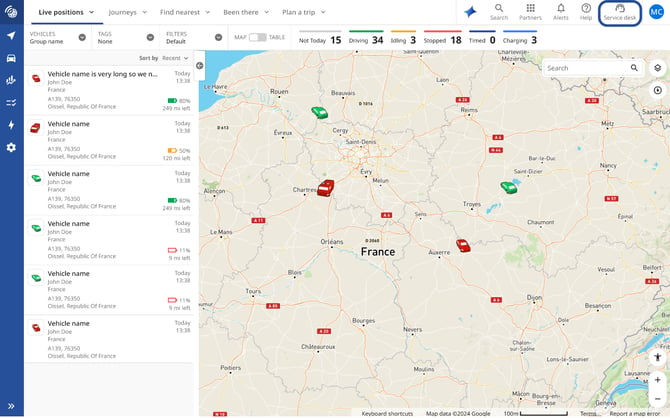
Once you have accessed this section, you will see a dashboard where you ask for help regarding:
- Fault: Raise a case to report and resolve an issue.
- Services: Add, remove, or modify fleet services.
- Enquiry: Submit a general enquiry.

How can I view my cases and orders?
To view and track your cases and orders, you can see their overall status directly from the Dashboard section.
For more detailed information, click "Show Cases" or "Show Orders" on the right-hand side of the screen. Alternatively, you can navigate using the top menu by selecting "Dashboard", "Cases", or "Orders" under "Service Desk".


Ask for help - Fault, Services & Enquiry
Fault: Raise a case to report and resolve an issue
To create a case, simply follow the step-by-step process and complete the information requested:
1. Case Type – Select the type of issue you would like to report.
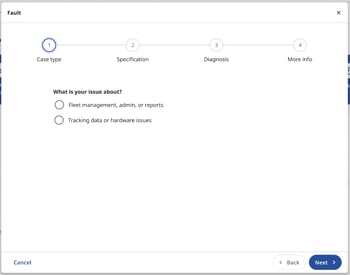

2. Specification – Provide the details required to help us understand and investigate the issue.
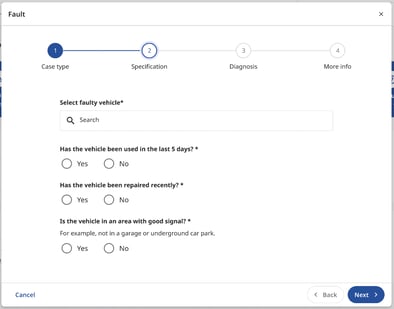
3. Diagnosis – The platform automatically performs a series of checks to determine if the issue can be identified

ATTENTION – Important note: After this diagnosis step, the platform may not detect any issue. In this case, please take the time to carefully check the affected vehicle before continuing your fault request.
If an engineer is dispatched and no issue is identified, a call-out charge may apply.

4. More Info – Add any additional information that may help us process your request.
E.g.: booking details and contact in case we need to send out an engineer
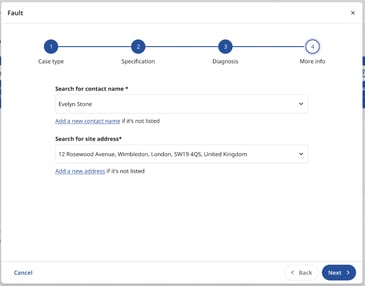

At the end of the process, you will be presented with a summary of the information you have provided. Once you have reviewed the details, click “Next” to submit your case.
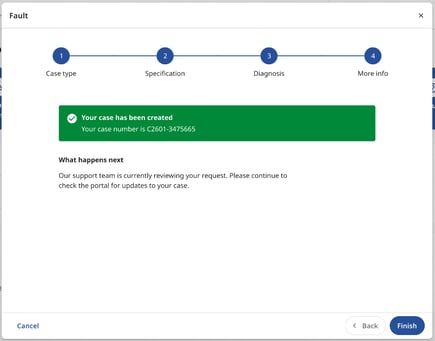
A green confirmation message will then be displayed, including your case number. To complete the process, click “Finish”.
Services: Add, remove, or modify fleet services
To submit a service request, simply follow the step-by-step process and complete the required fields at each stage.

Enquiry: Submit a general enquiry
To submit an enquiry, simply follow the step-by-step process and complete the required fields at each stage.

Remove a Vehicle from Your Fleet
To remove a vehicle from your fleet, go to "Settings, Alerts & Locations" using the gear icon in the blue navigation menu.
Once you have located the vehicle you wish to remove, click on the three dots under "Actions" and select "Remove from Fleet".

You will then be redirected to the Service Desk, where the Case Type will be automatically pre-filled. You can then choose between deactivating or defitting the device from your vehicle. We strongly recommend selecting “Defit” whenever possible, as it is the more sustainable option. Defitting allows the device to be physically removed and returned, enabling it to be refurbished and reused within other installations. This helps reduce environmental impact by supporting a circular approach to hardware management.

Once you have selected whether you want to deactivate or defit the device, simply complete the required fields and provide the necessary information, then submit your request for validation.

I'v placed a new order - How do I request a hardware upgrade or a new installation?
To do so, select "Services", then tick the "Raise an install or upgrade from a recent order" option.
You can then follow the step-by-step process and complete the required fields at each stage, just as described in the previous examples.


How do I raise a fault directly from a vehicle?
When you are in the "Live Positions" section, you can select a vehicle from the vehicle list on the left-hand side of the screen, by clicking directly on the vehicle on the map, or by using the search bar available on the right.
Once the vehicle panel opens, click the "Raise a Fault" button located in the bottom-right corner.

You will then be redirected to the Service Desk, where the Case Type will be automatically pre-filled. Simply complete the remaining required fields and submit your request.

What happens if I make a mistake?
If there are any errors when creating your case, they will be flagged and you may be asked to try again. In this situation, a failure screen will appear, displayed with a red warning panel, indicating that the submission was not successful.
