
Reminder - Installation guide
The Asset/Truck ID installation guide is available at the following link: LINK.
The tag is attached by you to a truck (positioned where a truck is physically coupled to a trailer). The TCU has a multi purpose wireless serial network (WSN) that reads nearby IDs.
The truck ID is made available in the Web Live Positions, Journey Reports and Vehicle Admin (naming truckID)
The truck ID auto registers in a customer's MCF account. A truck ID that exists already in another account is not created (an issue on the legacy platform ‘SASWEB’ which migrated customers may have experienced where nearby IDs were read and recorded).
Updating and editing the linking and asset ID name or including it in a group/ excluding or deleting the ID in the setting view
Install the sensor Asset ID on the truck vehicle
Quick reminder: the Asset/Truck ID number displayed on the platform is the same one that appears on the back of the device installed on your vehicle.

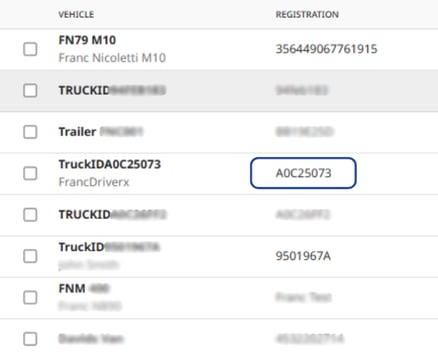
Settings view in MyCF : automatic pulled into the customer account when the sensor is detected by the TCU
When your TCU detects an Asset ID on one of your vehicles, it automatically appears in MyConnectedFleet.
You can verify this by going to “Settings, Alerts & Locations” (gear icon) → “Organisation” → “Vehicles”.

Settings view in MyCF : Process for unassign a Truck ID from an account
From the same section as before (“Settings, Alerts & Locations” (gear icon) → “Organisation” → “Vehicles”), you can:
-
Edit: Modify a vehicle’s information
-
Exclude: Hide a vehicle from your list
-
Delete: Remove a vehicle from your MyConnectedFleet account


Settings view in MyCF : edit the vehicle name
To dive into the vehicle editing section, you can update the following information:

Where to find Asset/Truck ID
From Live Position

From the “Live Positions” page (arrow icon), you can select a vehicle. Once the vehicle panel opens, click on “Inputs” (in yellow above) to view various information, including the Asset ID number.
From Journey report
From the “Journey Report” page (vehicle icon), to access the Asset ID number of one or more vehicles, click on “Report” → “Library”, and select a journey report.
