
General notes
- If the user clicks on the save button, the system is saving all changes (even if changes are in a different alert type / category).
- All users from the company can see the alert management window
- About recipients, there is no user management
- /!\ Important note : The language used for alert notifications is the language used in the UI when the user creates / updates the alert.
- Example:
- My account is in French.
- I create a new tacho alert
- The alert will be in French and all recipients will receive the notification in French.
- Example:
How to access to tachograph page
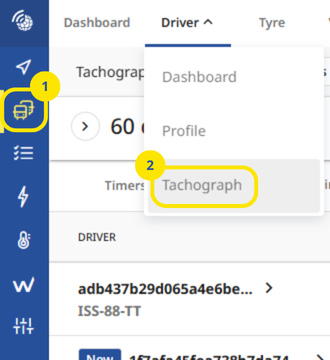
You can access to the tacho page
- Click on “Drivers, vehicles & Reports” on the left side bar
- Click on “Driver” > “Tachograph” on the top side bar
How to use it
- Click on button “Alerts”

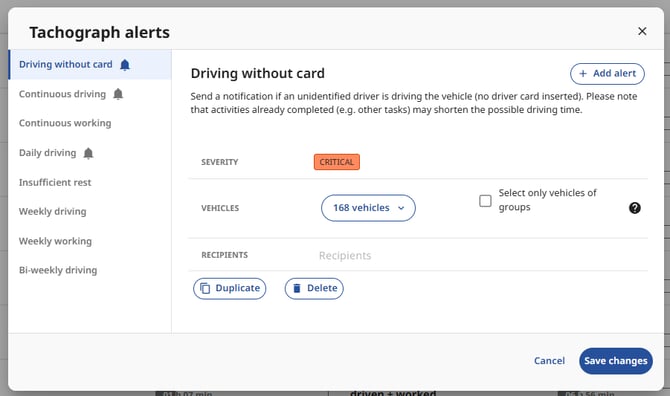
- Create / manage the different alerts by alert types
- Select the right severity
- Add the recipients
- At the end of the process, save alerts using “Save” button. Save button is used to validate all changes
Other information about the operation
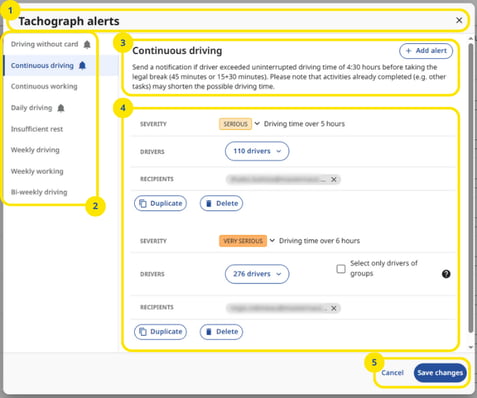
- Bloc 1: Title of page
- Bloc 2: List of available alert types / categories
- Bloc 3: Title of alert type / category and description of the alert type / category
- Bloc 4: List of alerts for the alert type / category
- Bloc 5: Save and Cancel buttons
UX Rules
Bloc 1
Title of page
Bloc 2
List of alerts
- Display the list of alert types
- Rule: The current alert type is bold and with a marker
- Display check pictogram on the right
- At 1+ alert is enabled
Bloc 3
- Title of alert type / category
- General description of the alert type / category
Bloc 4
- List of alerts by alert type
- The sort should be by severity “Minor”, “Serious”, “Very serious”, “Most Very Serious”
- No limit for the number of alerts.
- “Add alert” button
- Status
- Enabled
- Behaviour on click
- Create a new alert line
- Status
- “Pencil” button
- Delete
- On click, delete the current line
- N.B : Need to click on the save button to validate the change
- Duplicate
- On click, duplicate the current line in another line
- N.B : Need to click on the save button to validate the change
- Delete
- List of recipients
- Enter a correct email and click on “Enter”
Bloc 5
Button “Save”
- Status
- The button “Save” is disabled by default
- The button “Save” is enabled if a change is detected
- Save button is used to validate all changes (Create, Duplicate, Delete, Update)
- Behaviour on click : snack bar on the bottom left
- Success case :
- 1 - The tachograph alert window saves all changes - it is not only for the current alert displayed
- 2 - The tachograph alert window is closed
- 3 - A snack bar message is displayed, at the bottom left with the text : “Alerts been updated”
- Fail case :
- 1 - The tachograph alert window remains displayed
- 2 - A snack bar message is displayed, at the bottom left with the text : “An error has occurred. Try again.”
- Success case :
Button “Cancel”
- Status
- The button is enabled.
- Behaviour on click
- Close tachograph alert window