
What are Locations?
In MICHELIN Connected Fleet's MyConnectedFleet, Locations are specially tagged places on the map that facilitate fleet tracking. Vehicles in the proximity of a location are automatically associated with it.
Locations are typically starting and end points (depots, warehouses, client addresses, customer addresses), but can also be frequent stop points (petrol stations, hotels, car parks). Each location is associated with a predefined location type.
How do I organise multiple locations?
Locations are organised by groups. Within MyConnectedFleet there are a default set of Location groups these are:
|
Name |
Icon |
Name |
Icon |
Name |
Icon |
Name |
Icon |
Name |
Icon |
Notes |
Icons |
|
Airport |
|
Building |
|
Blue Circle |
|
Blue Dot |
|
Blue Flag |
|
Orange Pin |
|
|
Customer |
|
Company |
|
Green Circle |
|
Green Dot |
|
Green Flag |
|
Green Pin |
|
|
Deport |
|
Gas Station |
|
Orange Circle |
|
Navy Dot |
|
Orange Flag |
|
Purple Pin |
|
|
Fuel Station |
|
Home |
|
Purple Circle |
|
Orange Dot |
|
Purple Flag |
|
Red Pin |
|
|
Local Cuisine |
|
Hotel |
|
Red Circle |
|
Red Dot |
|
Red Flag |
|
White Pin |
|
|
Office |
|
House |
|
White Circle |
|
Yellow Dot |
|
White Flag |
|
Yellow Pin |
|
|
Port |
|
Internal |
|
Yellow Circle |
|
|
|
Yellow Flag |
|
|
|
|
Prospect |
|
Location |
|
|
|
|
|
|
|
|
|
|
Restaurant |
|
Man |
|
|
|
|
|
|
|
|
|
|
Service |
|
None |
|
|
|
|
|
|
|
|
|
|
Supplier |
|
Others |
|
|
|
|
|
|
|
|
|
|
Train Station |
|
Usine |
|
|
|
|
|
|
|
|
|
How do I manage location groups?
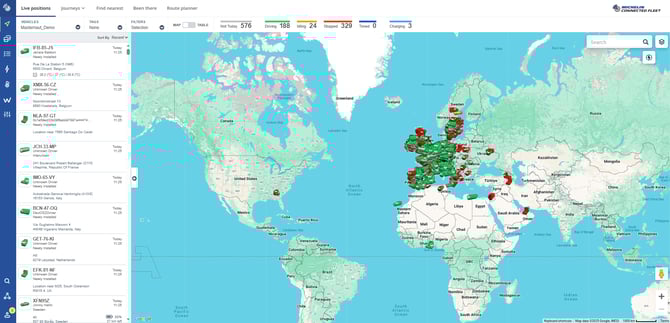
Location groups can be added or edited by going to Settings, Alerts & Locations -> Locations -> Groups.
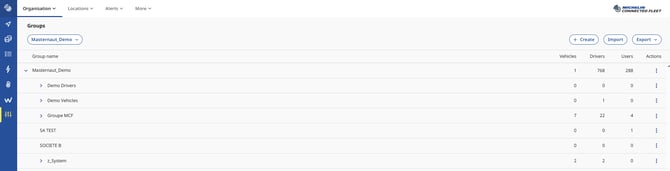
From the “Groups Page” the list of the existing location groups are currently displayed. Existing groups can be edited or deleted by clicking on the "edit" icon.
To add a new location group click the "Create" icon. You will then need to add in a location group name and select an icon for the newly created group.
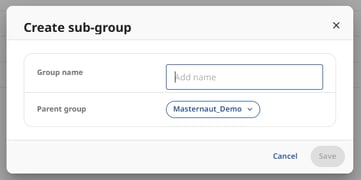
New location groups must have a name and an icon selected before they can be added
How do I add a location?
Locations within MICHELIN Connected Fleet's MyConnectedFleet can be added in 4 main ways:
- Via the “Manage Locations Page”
- Via any page with a map
- Via the APIs
- Via a file import
Adding a location via the map
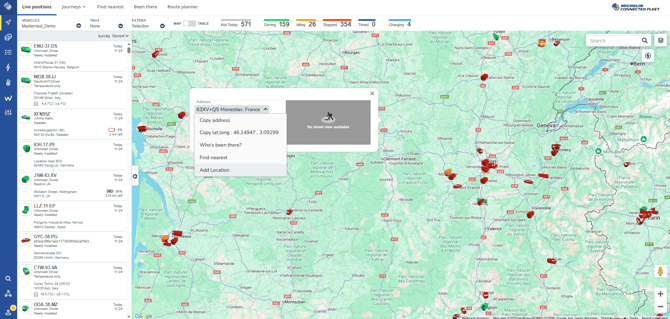
New locations can be added from any map view by left clicking on the map, then clicking on the little arrow following the adress and selecting “Add location”
When on a map view within MyConnectedFleet such as the live location page. Left-click on the place within the map where you want to add a new location.
This will bring up an menu where you can then select “Add location”
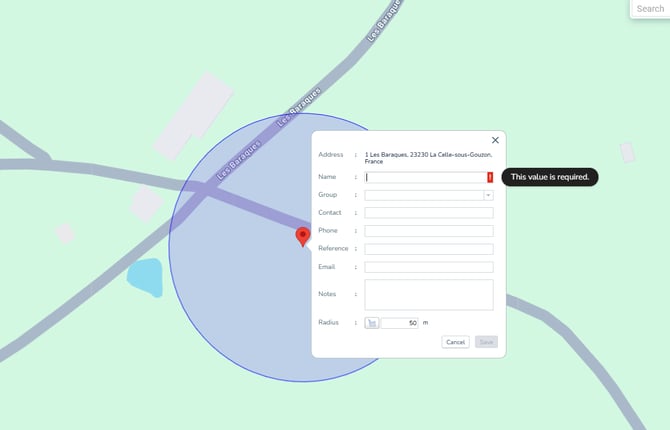
When adding a location only the name and group are required fields
After clicking add location a pop up box will appear with the following fields:
- Address - this is populated automatically
- Name - this is what the location will appear as in Connect
- Group - this is a pull down choice (additional groups can be added from the Group menu)
- Contact - is an optional field
- Phone - is an optional field
- Reference - is an optional field
- Email - is an optional field
- Notes - is an optional field
- Radius - this is the area around the location - this is 54 yards by default.
Once all relevant fields are filled out click the save button and the location will be added to MICHELIN Connected Fleet's Connect.
Adding a location via the manage location page
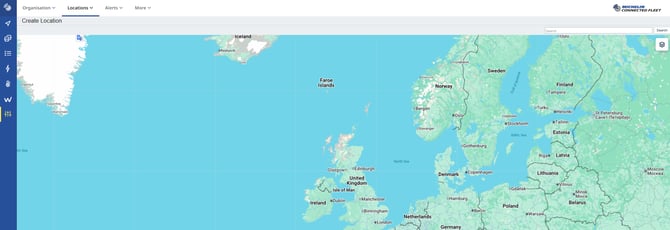
New locations can be added by zooming in on the map and clicking where a new location is to be added.
New locations can be added from the Locations menu within MICHELIN Connected Fleet's Connect.
Within the Locations menu click the down arrow icon which is found advent to the “Locations” heading - this will open a pull down menu where “Create” should be selected.
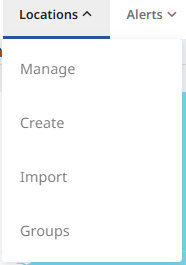
After selecting the “Create” option a map view will load. From the map left click on where you want to add the new location.
When adding a location only the name and group are required fields
After clicking the add location a pop up box will appear with the following fields:
- Address - this is populated automatically
- Name - this is what the location will appear as in Connect
- Group - this is a pull down choice (additional groups can be added from the Group menu)
- Contact - is an optional field
- Phone - is an optional field
- Reference - is an optional field
- Email - is an optional field
- Notes - is an optional field
Once all relevant fields are filled out click the save button and the location will be added to MICHELIN Connected Fleet's Connect.
Adding a location via the API
In order to do this you will need to have access to the APIs via your account - speak to your MICHELIN Connected Fleet's Account manager for further information.
Adding multiple new locations at the same time can be done using https://api.masternautconnect.com/connect-webservices/services//public/v1/customer/{customerId}/location
Response Format
|
{ "address": "66 Bradford Rd, East Ardsley, Wakefield WF3 2EY, UK", "latitude": 53.721340, "longitude": -1.541350 } |
|
|
Adding a location via the file import
Import Location allows multiple locations to be added to MICHELIN Connected Fleet's MyConnectedFleet at the same time
When wanting to add more than one location at the same time the “Import Locations” function can be used.
Note - when using the import function the group type and radius for all the locations is defined - therefore it is recommended to add all locations of the same group type at the same time.
Within the Locations menu click the down arrow which is found in the “Locations” heading - this will open a pull down menu where “Import” should be selected.
After selecting the “Import” option the Import Location page will load.

Radius and Location Group are defined for all locations when using the import
When importing locations it is useful to use the example file as a template. This can be found in the top right corner of the screen.
After clicking the "Download example file" button your browser will download the example file in CSV format. This can be opened using a programme such as Microsoft Excel.
The example file contains all the fields which can be populated when adding a location.
How do I view a location I've added?
To view your added locations in MICHELIN Connected Fleet's Connect; from the map page click the layer icon in the top right hand corner and then enable locations by using the tick box. Locations will now be viewable on the maps.
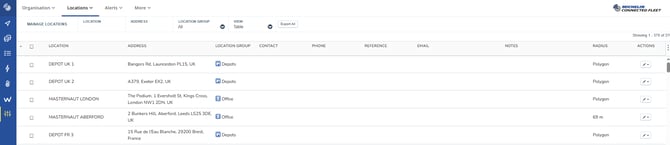
A list of added locations can be found in the location area of MICHELIN Connected Fleet's Connect. (Settings, Alerts & Locations -> Locations -> Manage Locations)
The manage locations page
On the manage locations page there are 3 different view options, these are:
- Map
- Table
- Map/Table
The view option can be changed on the “Manage Locations” ribbon menu.

How do I edit a location I've added?
From the “Manage Locations Page” there will be a table containing the existing locations. Existing locations can be edited by clicking on the "white pencil" icon and then the "edit" option this will open the edit pop up on a map view.
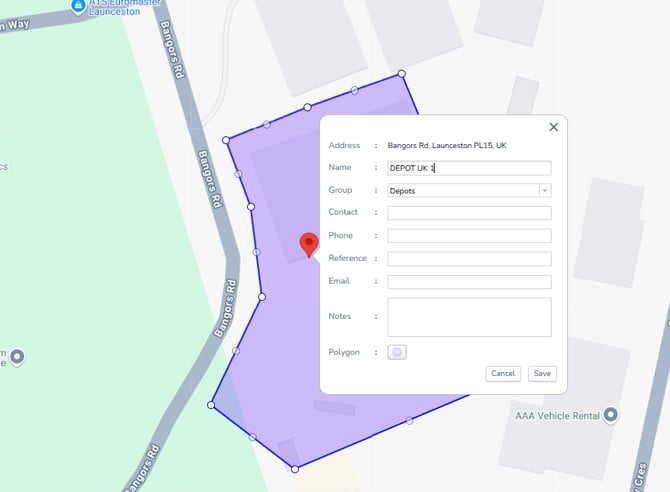
Only the address of a location can not be changed on the edit screen.
Once all changes are made click on the save button or cancel if you do not want the changes to be applied.
How do I remove a location I've added?
Locations can be deleted via the Locations page.
From the “Manage Locations Page” there will be a table containing the existing locations. Existing locations can be deleted by clicking on the "white pencil" icon and clicking the "delete" option this will open a confirmation pop up. Once a location has been deleted it will need to be added to the system again.
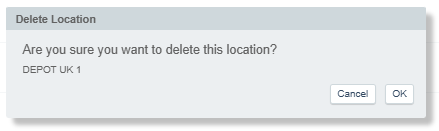
The confirmation pop-up shows the name of the location selected to be deleted.
Search Locations
The advanced search is available from any window with MICHELIN Connected Fleet's Connect
Within any page of MICHELIN Connected Fleet's MyConnectedFleet it is possible to use the “Advanced Search” functionality.
Clicking the "search" icon will open a search window. Within the search window you can start to type the location name and the search window will automatically begin to generate the search results within the window.
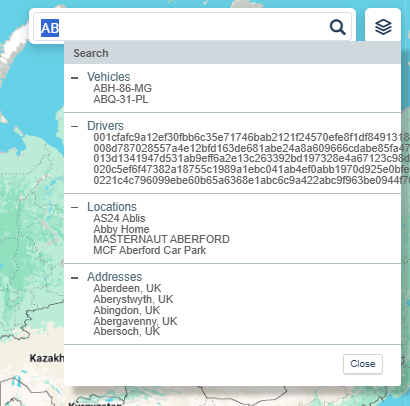
The advanced search window
How do I check if a vehicle is at a saved location?
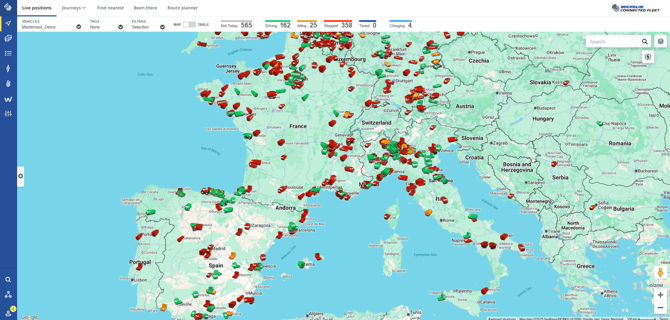
The vehicle list panel is opened and closed from the map view.
The vehicle list panel is accessible from the map view. Within this view is a list of vehicles and their current location. Where a vehicle is at a saved location it will display the Name and Icon of the saved location.