Overview
For Drivers - Complete a vehicle check (SmarterDriver App)
To complete a vehicle check as a driver on the SmarterDriver App, simply:
1. Click on “New check” in the Vehicle Check section
2. Select a vehicle and click on it
3. You can view previous reports and start a new one by clicking “Start vehicle check”
4. Choose a template created by your company based on the scenario you want to complete


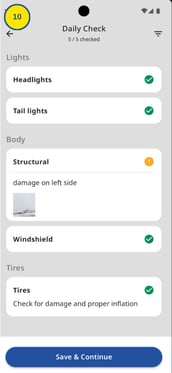
5. Choose between "Defect", "N/A" or "OK" for each part of the vehicle to inspect by clicking the buttons at the bottom
6. If there’s an issue and you select "Defect", you can describe the problem and indicate whether the vehicle is still drivable or not
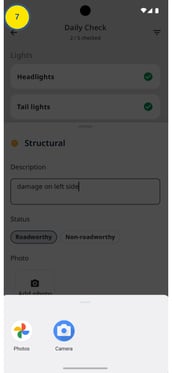
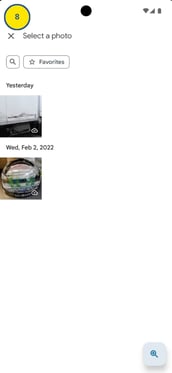
7 & 8. Additionally, you can upload a photo


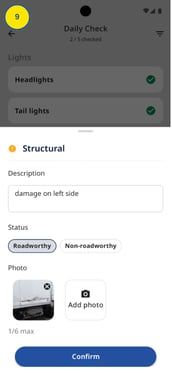
9. Once the defect is completed, click on "Confirm"
10. When the vehicle check is complete, click on "Save & Continue"
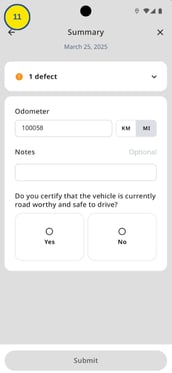
11. Finish by entering the mileage and indicating whether the vehicle is drivable. You can also add a comment if needed
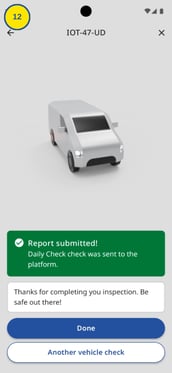
12. After clicking "Submit", you’ll see a confirmation on-screen indicating that your report has been shared with your fleet manager in the MyConnectedFleet platform
For Fleet Managers - View and take action on a vehicle check (MyConnectedFleet platform)
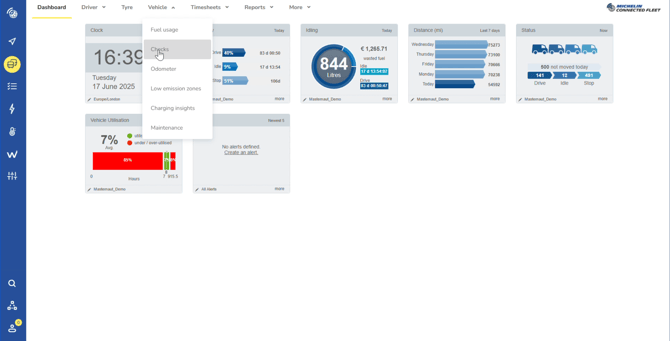
1. Once logged into the MyConnectedFleet platform, you can click on the vehicle icon named "Drivers, Vehicles & Reports" in the right-hand menu.
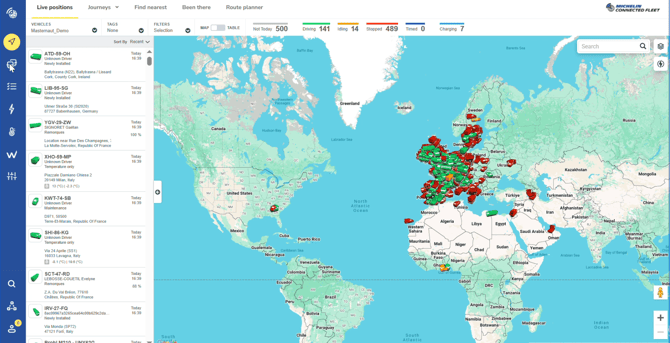
2. Then, in the top tab, select "Vehicles" and then "Checks".
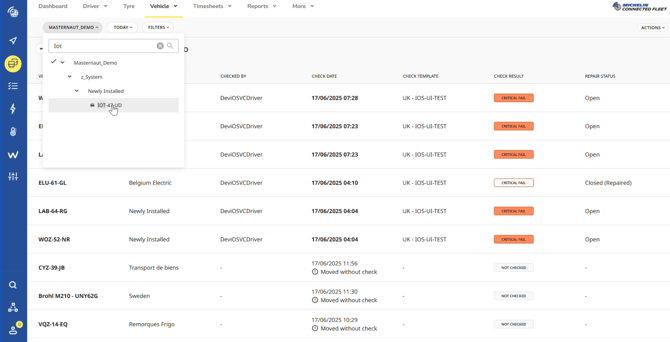
3. Once on the page, you can see all vehicles. To search for a specific vehicle, click on your fleet name (e.g. here, "Masternaut_Demo") and use the search bar to find the vehicle you want to check.
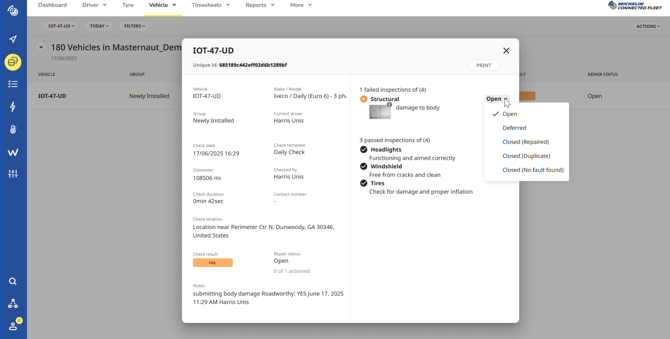
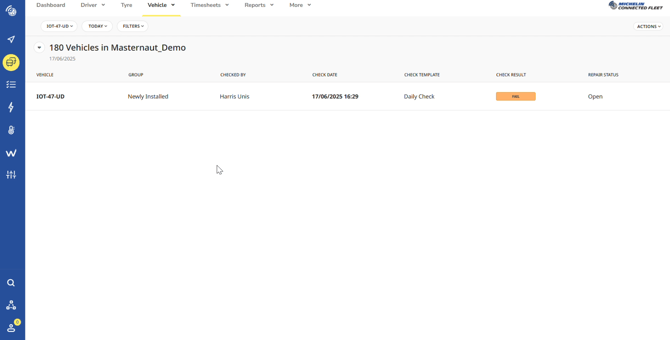
4. When your vehicle appears, you can access information about the driver who performed the vehicle check, the date, the template used, and the result, including the repair status. Note that in this case, the driver flagged an issue with the vehicle, which is why it shows as “Fail.” The repair result is still marked as “Open” because no action has been taken yet.
5. Here, you can access all the information and details of the vehicle check performed by the driver.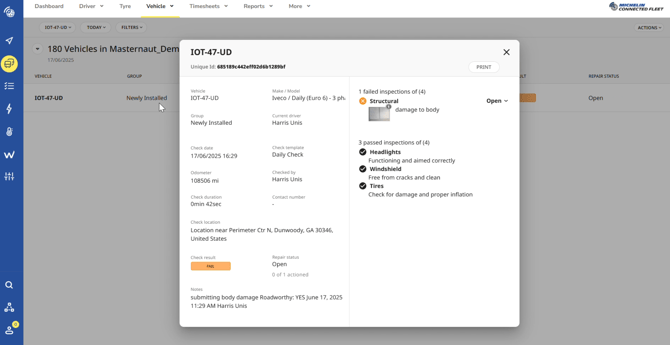
6. To finish, and depending on your decision, you can choose on the right side of the tab to close the status or not, and select from the different statuses depending on the severity of the defect or whether it has been repaired.